
Rich text editors have become a core part of hundreds of thousands of websites. Syncfusion and Tiptap have earned developers’ trust thanks to their solid architecture, cross-platform support and the ability to integrate third-party solutions.
Challenges start when users need to clean up their text from mistakes. The built-in proofreading options in these editors are not adapted to a comprehensive approach to text editing. So when text quality really matters, basic spell checking just doesn’t cut it.
Therefore, integrating professional text checking tools is no longer a nice thing to have for late—it becomes a necessity. The real question is how to add this functionality to Syncfusion and Tiptap without major changes to the existing architecture 🤔
We’re going to look at the main options for integrating text checking with Syncfusion and Tiptap and comparing different approaches.
Inside Syncfusion and Tiptap plugin options
Syncfusion and Tiptap were both designed to be extended with third-party tools, but they do it in very different ways because of how they’re built.
📌 Syncfusion is based on the modular Essential JS 2 architecture and comes with a ready-made WYSIWYG interface out of the box. You only load the components you need and hook in third-party tools through events like actionComplete or actionBegin. You end up with a fully functional editor UI and clear integration points where you can add extra features.
📌 Tiptap is a headless framework built on ProseMirror. It doesn’t come with a built-in UI, so you assemble the editor yourself from extensions, like building LEGO. It gives you full control over the markup and behavior, but it also requires a deeper understanding of how the editor works internally.
Both editors can be used across different frameworks, but their level of support varies. The table below shows where native support exists and where you’ll need workarounds.
| Integration environment | Syncfusion | Tiptap |
| JavaScript (Vanilla) | Native support via ES6 | Native support |
| React | Native bindings | Official package |
| Angular | Native bindings | Community wrapper ngx-tiptap |
| Vue | Native support | Official package |
| Blazor | Native support | No native support |
| Svelte | No native support | Official package |
When it comes to connecting with a text checker specifically, there are three main approaches used in practice.
- Spell check API. The text is sent to an external service for checking, and the result is returned to the editor. This approach is flexible, but it requires careful handling of asynchronous calls and formatting.
- Embedding an SDK. The text checker is added as a component that already knows how to work with editor events and content structure. This approach is usually the most stable and least painful for developers.
- Using browser extensions. This works for quick experiments or testing spell-checking capabilities, but it’s intended for single users, offers minimal control and doesn’t scale well for complex architectures.
There are several ways to add text checking to web applications built with Syncfusion and Tiptap. Below we’ll take a closer look at each approach and see how well it fits real-world editor setups.
Exploring text checker tools for Syncfusion and Tiptap
Actually, Syncfusion and Tiptap both ship with basic text checking, but they don’t replace professional proofreading tools. They aim at covering the bare minimum and helping with simple mistakes.
Syncfusion includes a classic Hunspell-based spell checker inside its Document Editor. It highlights misspelled words, shows suggestions in the context menu and lets users ignore or replace them. It runs through a server setup and stops at spelling without touching grammar or style. So, teams often treat it as a temporary fix rather than a long-term solution for serious content.
Tiptap offers two AI-based options, and both sit behind paid plans.
- The built-in aiFixSpellingAndGrammar() command quickly corrects the selected text, but without previewing or checking the changes.
- Proofreader workflow from the AI Toolkit, available on the Pro plan. It adds preview mode, highlighting suggestions and letting users accept or reject fixes. That setup works based on OpenAI API, so corrections may not be what you expect and may even change the meaning or tone of the text.
While Syncfusion and Tiptap do have built-in checks, they only cover basic scenarios and have common limitations:
- Check spelling only, skipping grammar, style and more complex mistakes.
- Give you limited control over edits, which makes reviewing changes awkward.
- Support a limited number of languages.
- Skip previews or clear confirmation before applying changes.
- They tie features to paid plans or server-side setups.
- They limit the checking scope, like running only on selected text instead of the whole document.
- Both offer server-side processing (data sent to the provider’s backend), which may raise security concerns about data privacy.
Because of these gaps, many teams go with external proofreading services. Those tools give tighter control over quality, support grammar and style, support multiple languages, and have a wide range of features (such as autocorrection or rephrasing).
WProofreader
WProofreader is an AI-powered toolkit for real-time spelling and grammar correction in 20+ languages. It works with WYSIWYG editors and HTML editable controls, offering secure deployment options to protect your data.
It’s available in two flexible formats to match your workflow:
✅ WProofreader SDK for teams building apps on top of Syncfusion or Tiptap, with popular CMS, including WordPress, Joomla and Drupal. You can embed it directly into your existing editor setup, connect it via a standalone API, and control how and where text gets processed. Cloud or self-hosted deployment lets you match your security and compliance requirements without rewriting your architecture.
✅ WProofreader browser extension for teams testing integration approaches or individual developers who need quick text checking across multiple platforms. It runs in your browser and works with any web-based editor, including your Syncfusion and Tiptap implementations. On the free plan, checking happens via secure cloud. Business plans unlock additional features and let you request self-hosted deployment for stricter security requirements. Useful for prototyping integration patterns before committing to SDK implementation.
WProofreader spelling and grammar checker plugs into Syncfusion, Tiptap, or any other WYSIWYG editor really easily and it doesn’t care what framework you use. Since the editor ultimately renders a standard editable HTML element, WProofreader works with it directly without being tied to a specific framework.
It makes WProofreader one of the easiest and reliable options for adding professional text checking to any rich text editor.
WProofreader integrates with any rich text editor in just three main steps:
1. Package installation
Install the WProofreader package with NPM or Yarn (do this once per project):
npm install @webspellchecker/wproofreader-sdk-js
yarn add @webspellchecker/wproofreader-sdk-js
2. Import the module
In the file where you initialize the editor, import WProofreader:
import WProofreader from '@webspellchecker/wproofreader-sdk-js';3. Initialize WProofreader
When the editor is already created and its editable element is available, call WProofreader.init() with the minimal parameters:
WProofreader.init({
  container: editorEditableElement,
  lang: 'en_US',
  serviceId: 'YOUR_SERVICE_ID_HERE',
});
The only things you need to set up are:
- container—your editor’s editable DOM element
- lang—language code (example: en_US)
- serviceId—your activation key
Here’s how it works in practice ✍️
Demo:
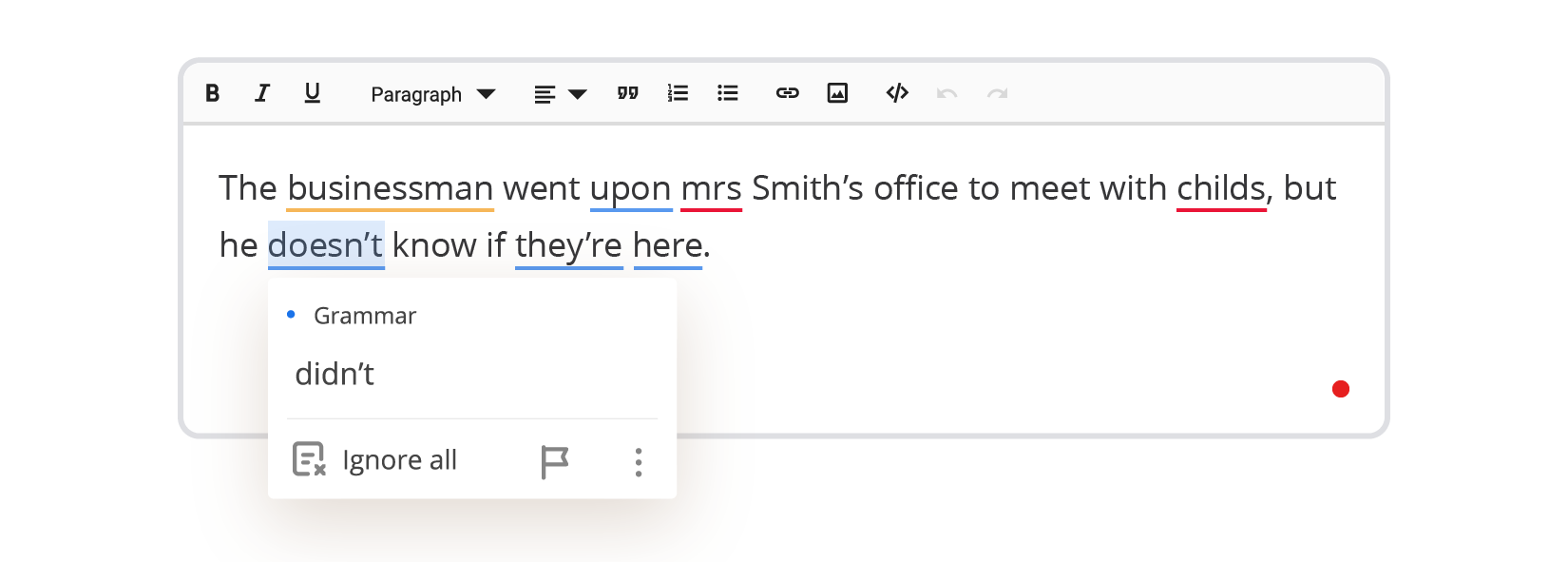
The businessman went upon mrs Smith’s office to meet with childs, but he doesn’t know if they’re here.
Syncfusion
Tiptap
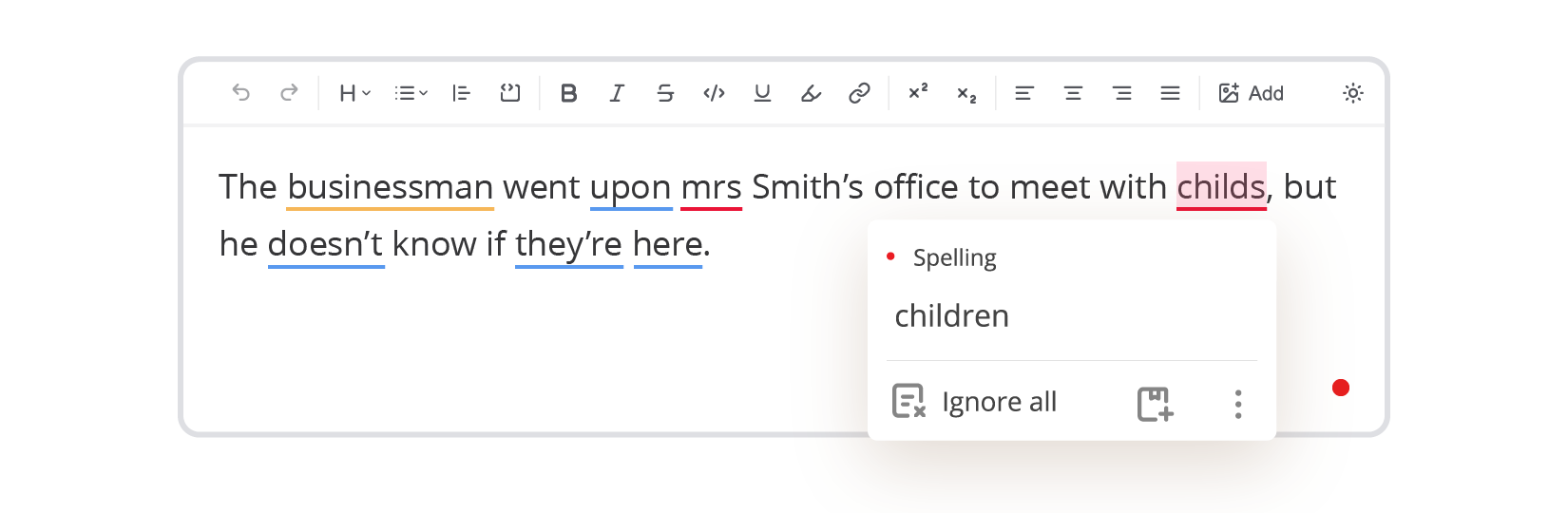
WProofreader catches different kinds of mistakes as you type and highlights them right inside the text. Each type of error gets its own underlying color, so you can instantly see what’s going on: a typo here, a wrong preposition there, tense agreement issues, or even a suggestion to use a more inclusive word instead of something like businessman. Just hover over any underlined word to see what kind of issue it is and get suggested fixes. One click, and the correction is applied 😉
If you want to know what each color means, read our previous article Behind colorful lines: how digital proofreaders classify writing errors. All of these error types appear the same way regardless of which WProofreader version you use.
This kind of feedback makes editing feel natural and intuitive. Users don’t need to guess what’s wrong or why, because the text itself guides them.
Let’s take a look at several other popular spell checkers that provide an API or an SDK and see how they approach text checking in real-world scenarios. Even fewer of these tools mention integrations with Syncfusion or Tiptap on their official resources.
Linguix
Linguix offers its own SDK and API for text checking. They don’t have public examples of integrating with Syncfusion or Tiptap, but technically it’s possible to connect them and see how the tool handles our sample text.
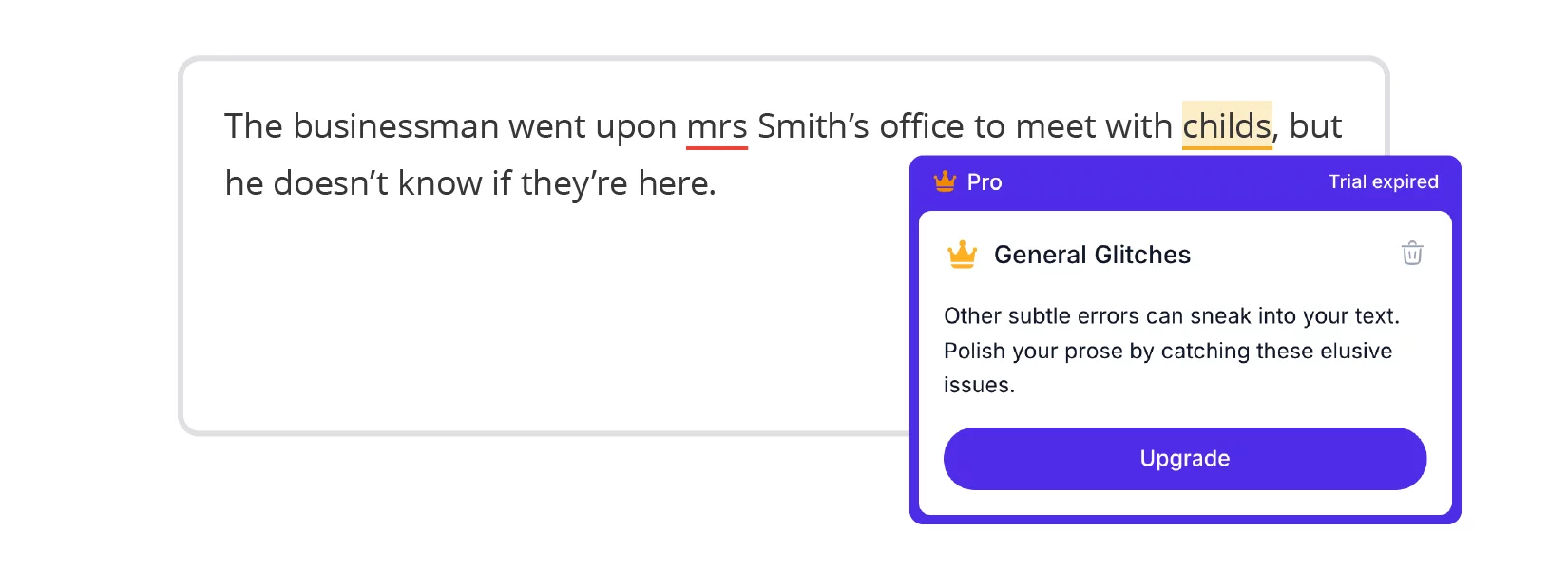
Unfortunately, Linguix didn’t catch all the mistakes in our text. It only marked “mrs” because it was in lowercase and also underlined “children,” but it didn’t give any suggestions. Those suggestions are only available in the paid Pro plan. This limitation makes it hard to rely on Linguix for full proofreading.
Sapling
Sapling has its own SDK, they mention that integration with Tiptap is possible. Technically, that means integration with Syncfusion should be possible as well.
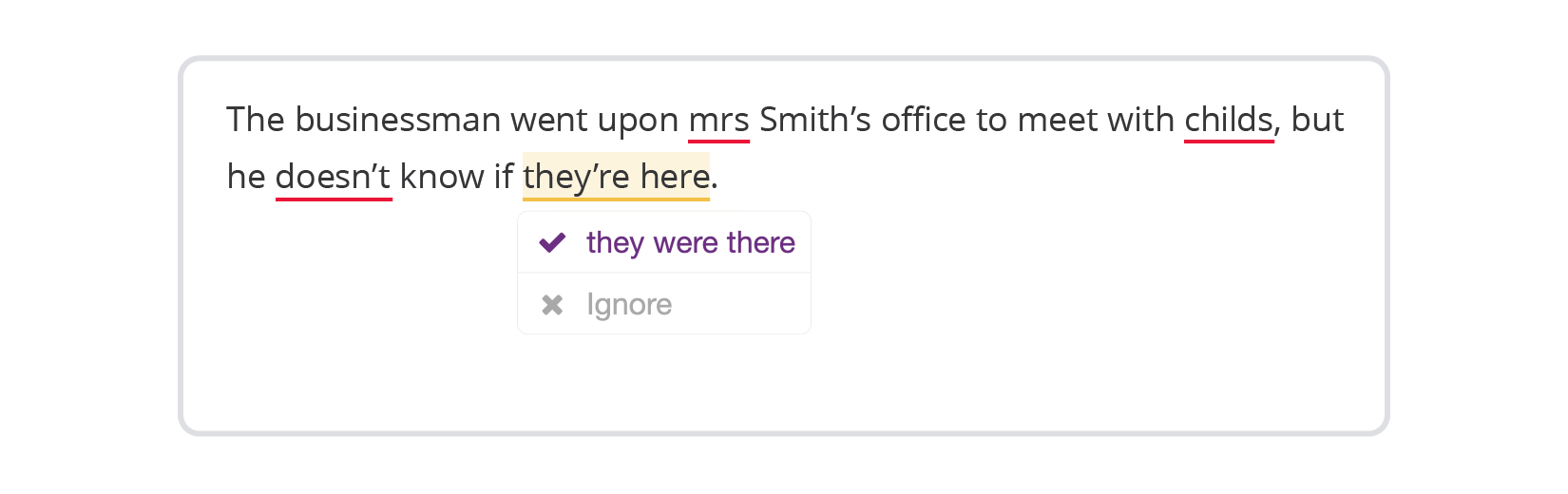
Sapling catches more mistakes than Grammarly, especially basic grammar and spelling issues. But it still misses style-related problems, like tone, clarity, or inclusive wording. Another downside is that Sapling underlines everything in red, which can confuse users without distinguishing spelling issues from grammar ones. When every mistake looks similar, it’s hard to tell what requires making a small fix and what—reconsidering the sentence structure and flow.
After seeing how these tools work in real editor workflows, the gaps become pretty obvious.
WProofreader, on the other hand, gives clear, immediate feedback right in the text, with different colors for different error types. And importantly, it keeps that behavior consistent no matter which plan you use. This makes it easier for users to understand and fix issues without guessing or getting overwhelmed.
There are also a number of other features that will enhance your experience working with text in Syncfusion and Tittap.
WProofreader multilingual writing assistant
No matter which WProofreader version you pick, you’ll benefit from all the features you need for comprehensive text editing:
- Real-time correction in 20+ languages, including AI-based English, German, and Spanish;
- Autocorrect and autocomplete features;
- Automatic language detection;
- Organization-wide and user custom dictionaries;
- Medical dictionary for English, Spanish, French and German;
- Legal dictionary for English and its dialects;
- Style suggestions for non-inclusive language, profanity, dialect variations, anglicisms and other tone issues.
- Style guide builder with customizable rules for your whole team or organization;
- AI writing assistant 🪄 It is a human-trained paraphrasing and content generation tool. We have put significant effort into creating and testing predefined prompts for various text operations. It helps you take your writing even further: rewrite, paraphrase or summarize in just a few clicks. Available in English, German, Spanish, Portuguese, French, Dutch, Swedish, Italian and Ukrainian—with more tone and style options coming soon 😏
From a multifunctional admin panel, you set up your team’s writing rules and choose which languages the app should support. You can manage user access in the same place: invite teammates, assign roles and keep permissions aligned.
The analytics dashboard also gives you real insight into how WProofreader performs in real workflows. It tracks how much text your team processes, which features they use most often, and identifies trends that will help you improve the overall quality of the text in your product.
WProofreader also takes your data security seriously. All your information is protected in transit with HTTPS and modern TLS encryption. Our cloud runs on secure AWS servers, and if you prefer, you can keep all data on your own servers in a self-hosted deployment. We follow GDPR rules and help meet HIPAA standards, so you can be confident that your data is secure. Try out how most of these features work with Syncfusion and Tiptap on our demos.

WProofreader SDK for developers
Available as a cloud or on-premise solution. Try for free.
Explore moreConclusion
- Syncfusion and Tiptap offer a few basic spell checking options out of the box. However, they only cover simple scenarios, which may not be sufficient for complex text editing tasks.
- You can enhance text editing by using third-party APIs and SDKs. Several solutions provide plugins for rich text editors. Each comes with its own pros and cons in terms of complexity, cost and coverage.
- WProofreader stands out as a comprehensive and easy-to-use solution. It integrates seamlessly with Syncfusion, Tiptap and other WYSIWYG editors, regardless of framework. This writing assistant handles a wide range of mistakes—from spelling and grammar to style and inclusivity—providing real-time suggestions with intuitive color-coded highlights. Its flexible SDK and browser extension options make deployment simple. You can run it in the cloud or self-host it, depending on your security needs.
Want to learn more about WProofreader plugin? Just drop us a message, and we’ll guide you through the best setup for your project 😉

 Tech
Tech News
News